
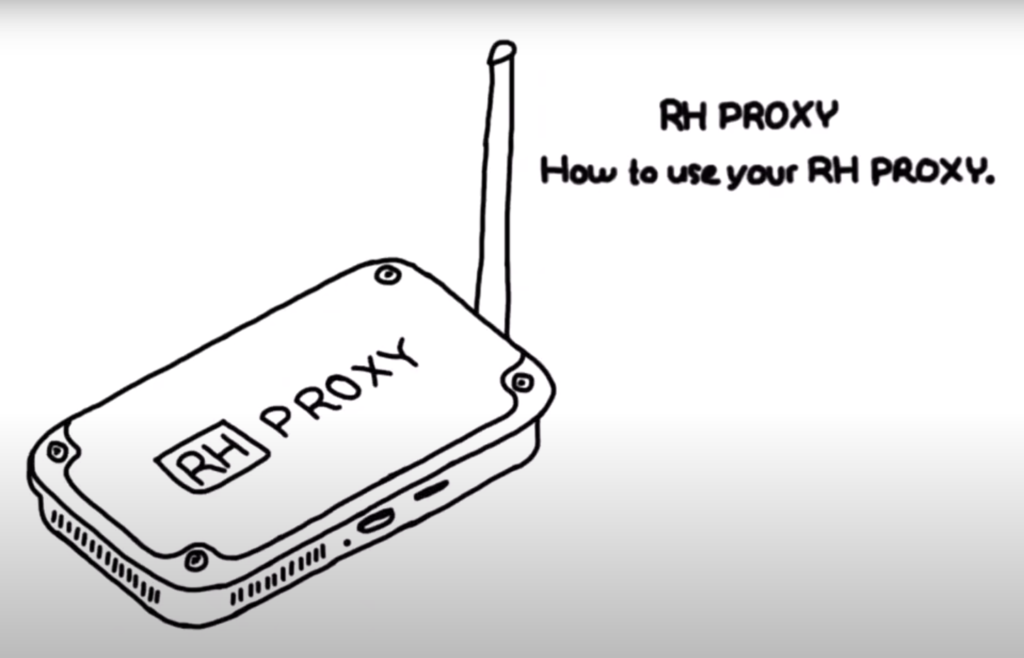
In this section, you’ll learn how to set up a mobile LTE proxy at home.
Prerequisites and recommendations
1. Wi-Fi network that you have access to (later home Wi-Fi).
2. Laptop/PC connected to home Wi-Fi.
3. Nano-sim card of a local provider.
4. Good 3G/4G/LTE reception (your smartphone can connect to the network? That’s what you need).
5. Place RH Poxy by the laptop and power it on from USB cable (after setup it can be moved to a different location).
6. We recommend Chrome or Firefox for the setup process.
Steps briefly
1. Take RH Proxy and screw in antenna.
2. Insert nano sim card (cut on the top left of the sim card).
3. Power on (switch to the right, wait until blue light stabilized).
4. Connect to the RH-PROXY-xxxx Wi-Fi network.
5. Open 192.168.34.1 in the browser and follow installation steps.
6. Switch to the home Wi-Fi network.
7. Try using proxy: rhproxy.lan:3128
Steps detailed
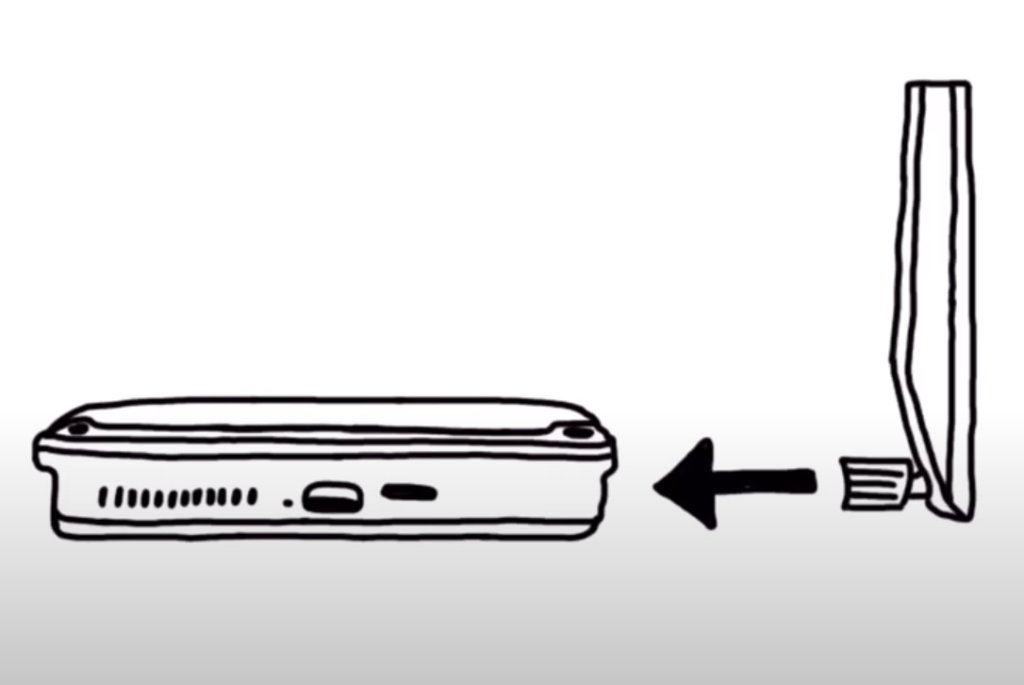
1. Screw-in antenna
RH Proxy is shipped with an external Wi-Fi antenna that is needed to maintain a stable connection between your proxy and your local network.
Take the antenna and gently screw it in until you feel resistance.
2. Insert nano sim card
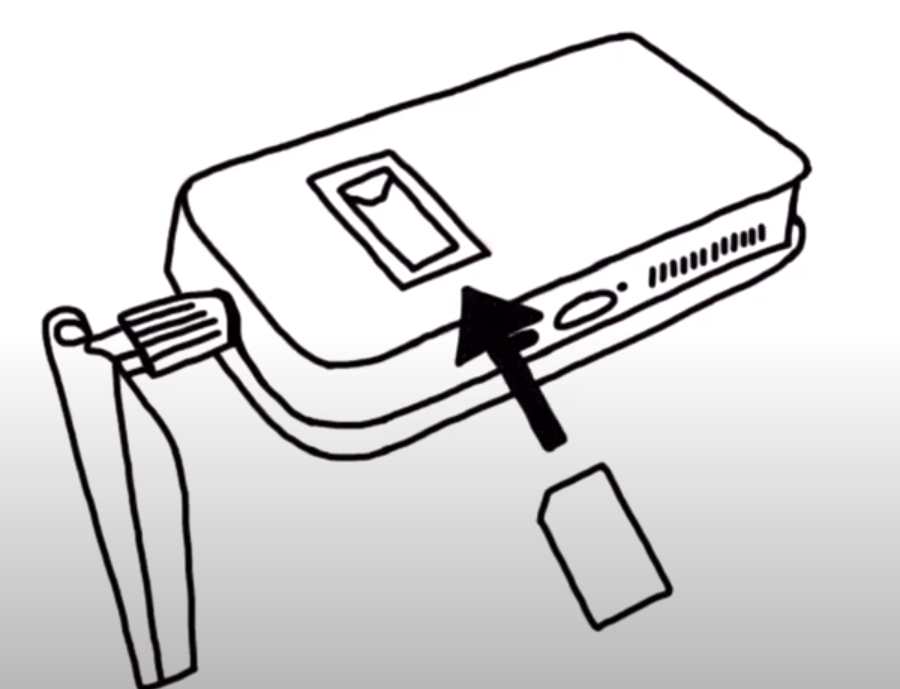
You will need a nano sim card that you can purchase at any local carrier store.
Please note, that RH Proxy supports only a nano sim card.
Mind the position of the cut on the sim card and make sure the sim card’s connector faces down. Don’t push it too far – until the point when it just to hit the red band.
You might have a feeling that inserting a sim card is not easy. We feel the same. And we are working on a better solution.
3. Power on
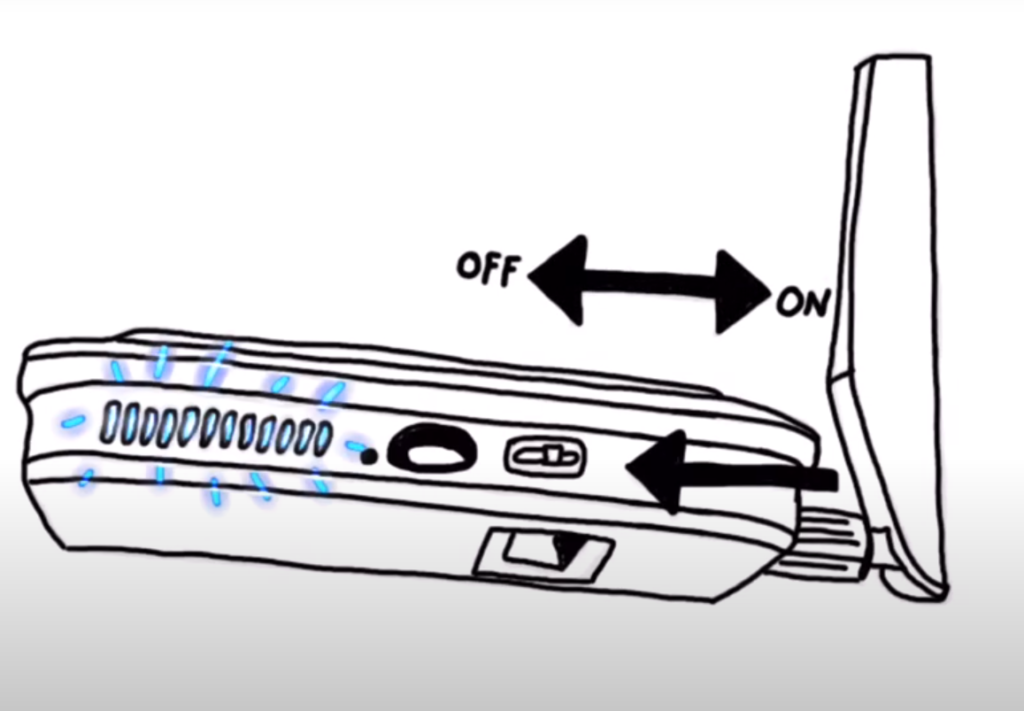
Connect the power cable to the USB-C slot of RH Proxy and move the power switch to the right.
You’ll notice a blue LED light blinking. Once the blue light is stable your RH Proxy is ready for further setup.
(Move the power switch to the left if you’d like to turn your proxy off).
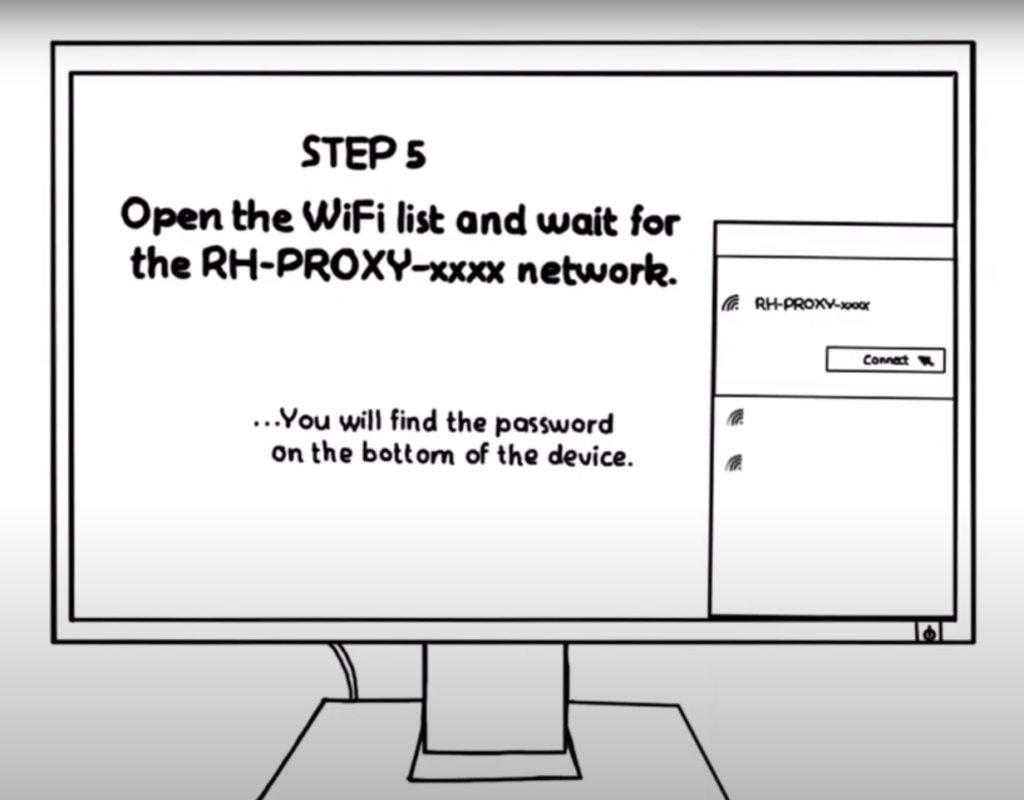
4. Connect to RH-PROXY-xxxx Wi-Fi network
RH-PROXY needs a stable connection to your home Wi-Fi so that you can access it from any device while you are at home.
Once your LTE proxy is on, open Wi-Fi networks on your PC and connect to RH-PROXY-xxxx network. You might lose an internet connection but don’t worry you’ll get it back once all is set and running.
The Wi-Fi network of RH Proxy is secured. You’ll find a unique password at the bottom of the device.
5. Access installation wizard
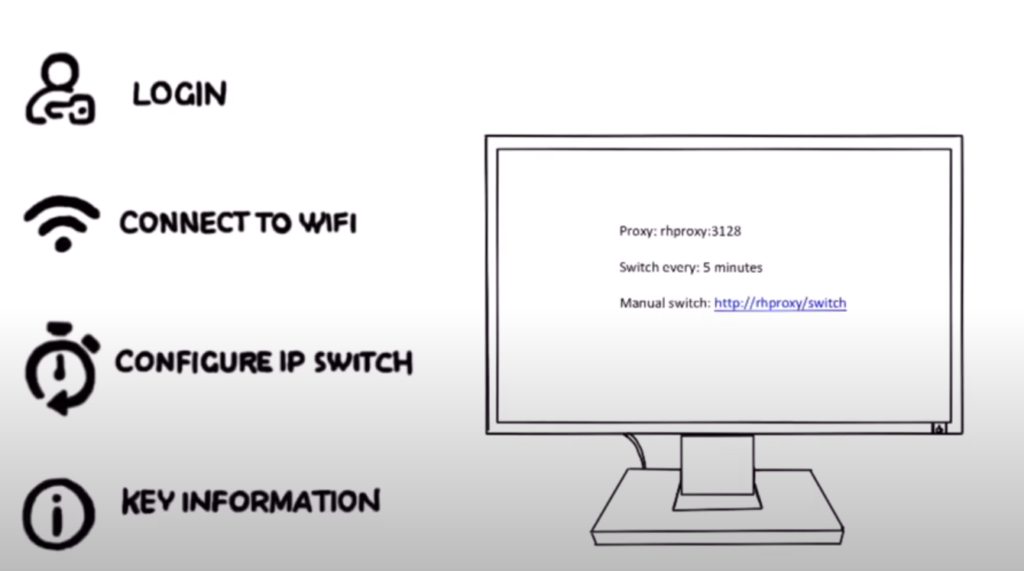
Once connected to the RH Proxy Wi-Fi network you need to go through a set of simple steps in order to make your mobile proxy work.
Open your browser and navigate to 192.168.34.1 in the address bar.
Follow the steps described below configuring a connection to your home Wi-Fi and IP switch frequency.
5.1 Login
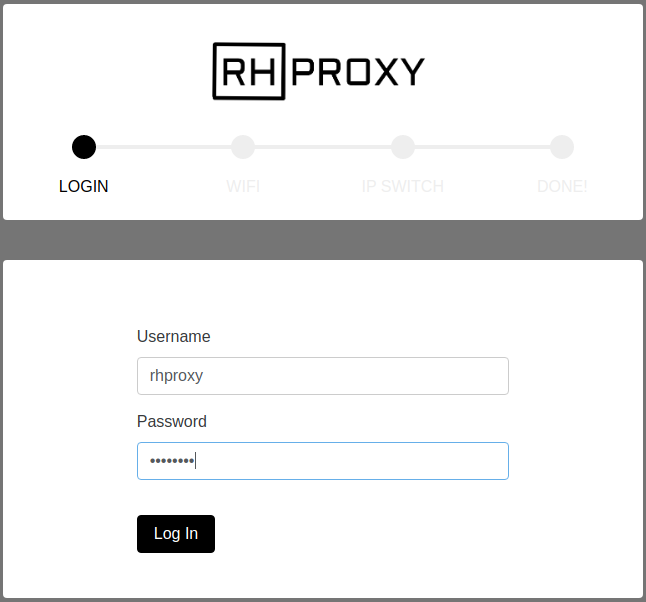
You will find your login and password at the bottom of the proxy device.
5.2 Connect RH Proxy to your home Wi-Fi
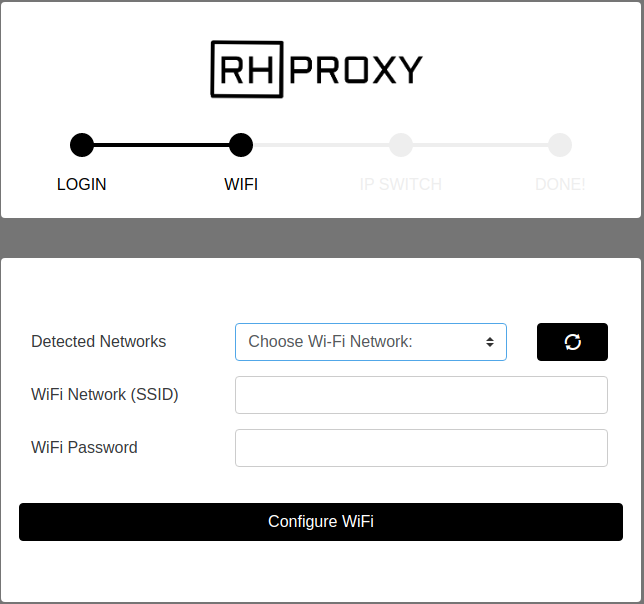
In order to use RH Proxy from your devices, you need to connect it to your home Wi-Fi.
RH Proxy will automatically scan for available Wi-Fi networks.
Choose your home Wi-FI, type in the password, and then press configure. Be careful with the password, if you typed it wrong you migh need to reboot RH Proxy to flush the configuration.
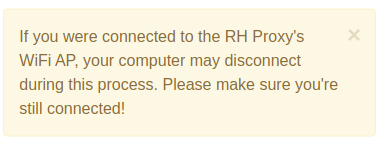
At this point, RH Proxy will refresh its network configuration and you might lose the connection to the RH-PROXY-xxxx Wi-Fi network. In this case please make sure to reconnect to the RH-PROXY-xxxx Wi-Fi network.
It may happen that you are stuck at this step. Try refreshing the page and go through the steps one more time.
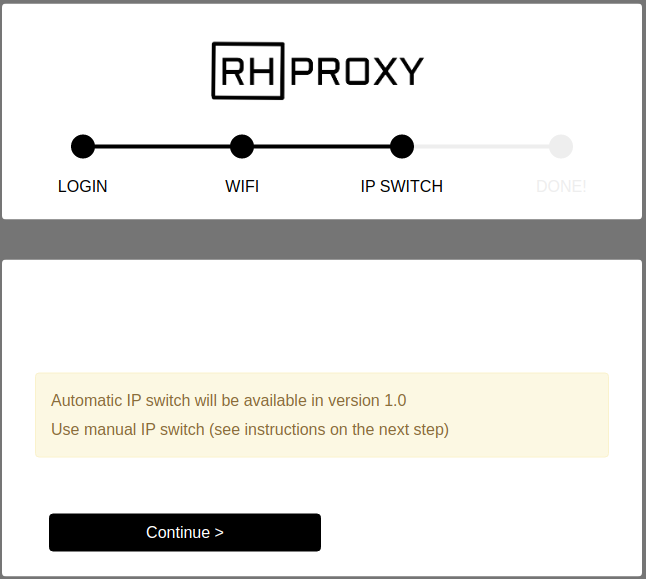
5.3 Configure reconnect
The current version doesn’t support automatic reconnects but this feature will be available soon. Just continue.
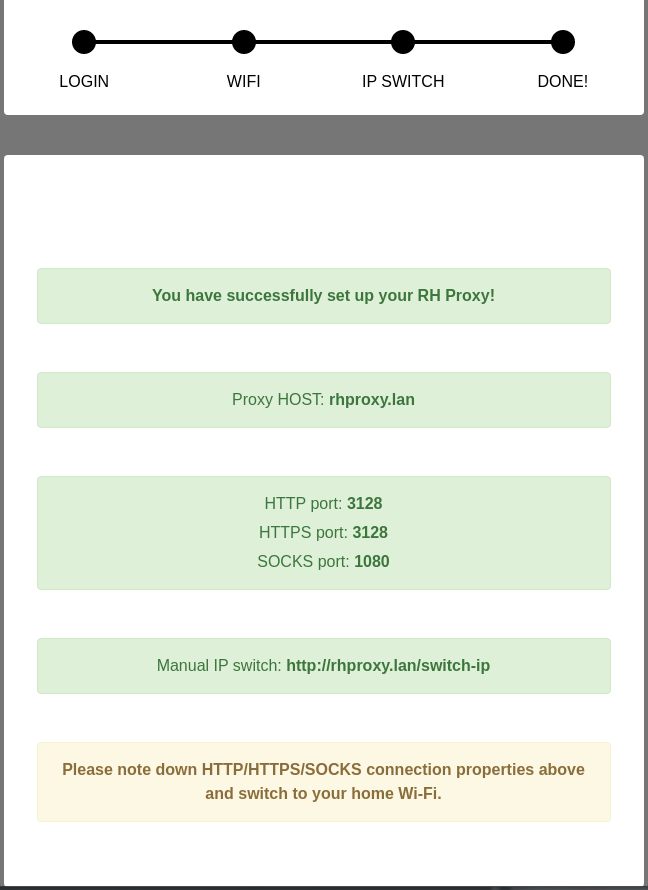
5.3 Key information
At this step, you can reconnect to your home Wi-Fi. Please note your RH Proxy access details.
6. Try it out
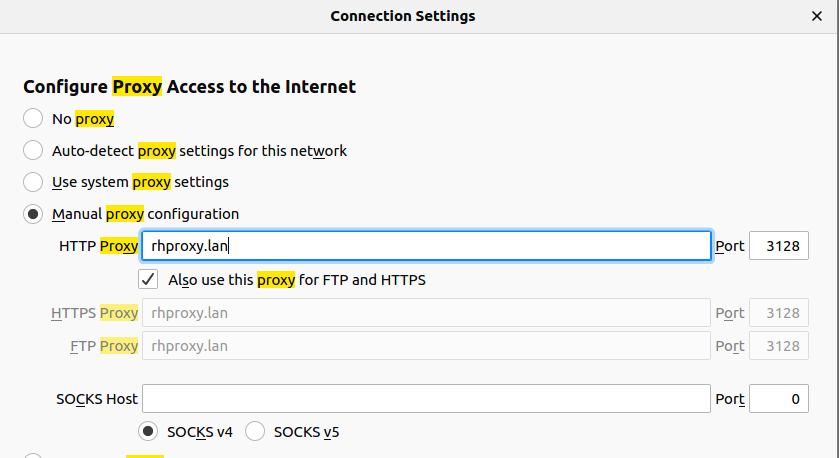
6.1 Configure browser
Open Firefox settings and configure proxy with host rhproxy.lan and port 3128
6.2 Check IP
Navigate to https://whatismyipaddress.com/ and check your IP.
Call http://rhproxy.lan/switch-ip
After a few seconds, you will get a new IP.
Navigate to https://whatismyipaddress.com/ and check your IP again. It will be a different one.
7. Done!
Have fun!
Let us know if you have any questions, difficulties, or recommendations. We are happy to help hello@rhproxy.com
FYI
Check out RH Proxy how-to video on YouTube.
RH Proxy features